
Need help? Contact support.
Installation and Setup
How to Set Up Your PlayerOne
Step 1: Quick and Easy PlayerOne Installation
Learn how to install and connect your PlayerOne device in less than five minutes
How to Control Your Player and Music
Step 2: Using the Soundtrack Remote Control
Once your player is powered on and connected, you can control it from any mobile phone, computer, or web browser. Here’s how:
- Click this link: Tim Hortons Remote Control
- Click the “+” icon in the upper right-hand corner.
- Enter your six-digit Remote Pairing Code (see email).
- Tap “Add Player”, then select your location to begin controlling your music.
Resources Guides
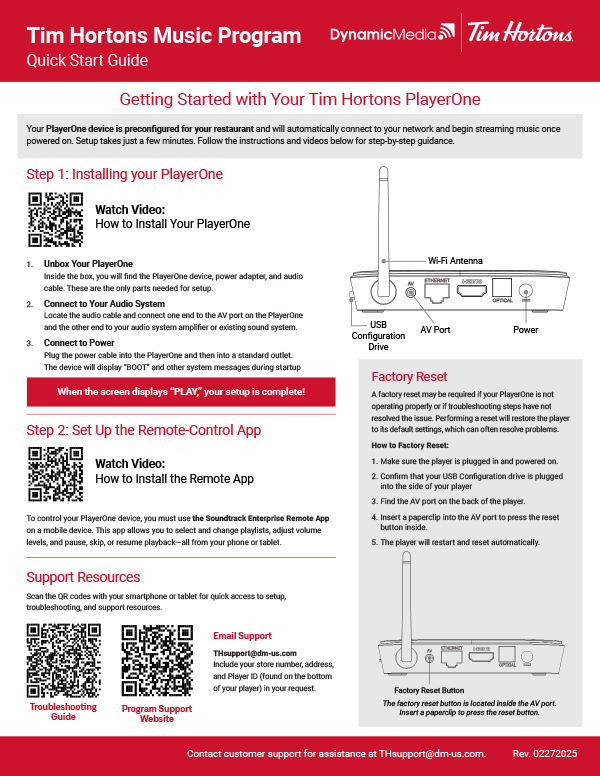 |
Quick Start Guide Simple steps to connect your PlayerOne and start streaming music. |
|---|
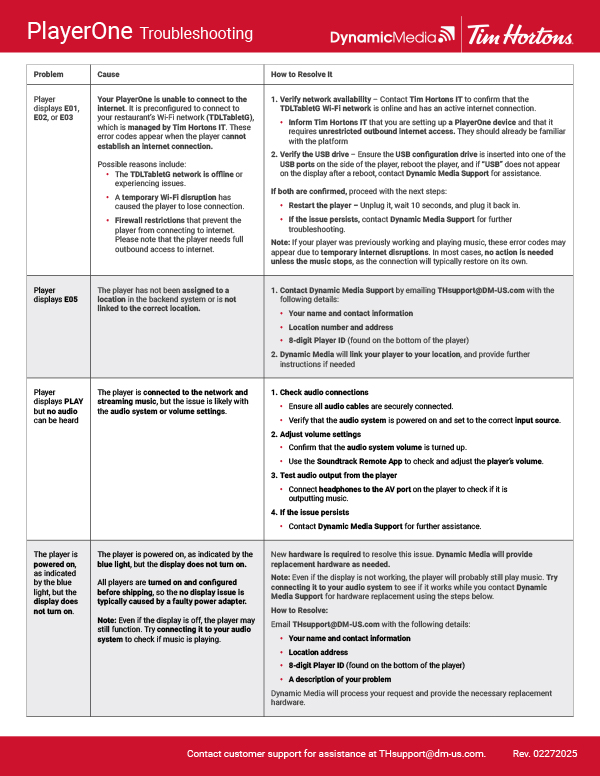 |
Troubleshooting Guide
Fix Common PlayerOne IssuesStep-by-step solutions for error codes, audio problems, and connectivity issues. |
|---|
Frequently Asked Questions
Music Playback & Troubleshooting
What happens if my internet goes down?
- The PlayerOne Music Player has a local music cache and will continue playing for up to 30 days offline.
- However, remote functions (pause, skip, volume control) will not work until the connection is restored.
How do I check if my PlayerOne device is online?
To verify that your PlayerOne device is online and functioning properly, check the display screen on the front of the device:
- If the display shows “PLAY” – The player is online and working properly.
- If you see an error code such as E01 or E02 – The player may be temporarily offline. Wait a few minutes and check again.
- If the issue persists, try the following:
- Unplug the player for 15 seconds and then plug it back in.
- The player should automatically reconnect to the network.
Additionally, check the screen to ensure that the Wi-Fi indication is lit up, confirming that the device is properly connected to your network.
Can I use my own music with this system?
No. Only Tim Hortons-approved playlists can be used to ensure full music licensing compliance.
How do I change my playlist?
- Open the Soundtrack Enterprise Remote App.
- Tap the three vertical dots next to the current track.
- Select “Change Music” and choose a new playlist.
- Watch the short video to learn how to use the remote app.
Using the Soundtrack Enterprise Remote App
Support & Additional Resources
Who do I contact for support?
For assistance, contact THsupport@dm-us.com.
You can also access online support resources, including troubleshooting guides and FAQs, by visiting:
Tim Hortons Music Program Support
How do I access the Dynamic Media Portal to manage my account?
You will receive an invitation to the Dynamic Media Portal shortly after placing your order.
- Your portal invitation email will include login credentials and a temporary password.
- Log into the portal at portal.dynamicmediamusic.com and set up your account.
What can I do in the Dynamic Media Portal?
From the portal, you can:
- Manage your locations
- Update billing details
- Download invoices
- Administer your account settings
If you have any questions or need assistance, please email THsupport@dm-us.com


